

If you have been hunting for a Dify workflow tts text to speech tool plugin, you have probably noticed the real question isn’t “which voice sounds nicest.” It’s which integration fits your workflow, your budget, and the way you want the audio to come back out. A Dify workflow can take whatever an LLM writes and turn it into a spoken audio file, but the route you pick decides how painful the setup is.
I’ll walk through the plugins people actually use (Fish Audio, EdgeTTS, DupDub, VoiceMaker), how to wire one into a Chatflow or Workflow, what to do when it breaks, and where the “free” claims get slippery. No lecture on what speech synthesis is. You already know.
What Is a Dify Workflow TTS Text to Speech Tool Plugin?
It’s a tool node that adds a text-to-speech step to an automated pipeline, so the text your LLM generates leaves the workflow as audio instead of only as words on a screen. The flow is short:
User Input → LLM Node → Generated Text → TTS Tool Node → Audio File → Workflow OutputThat’s it. Everything else in this guide is detail around those arrows.
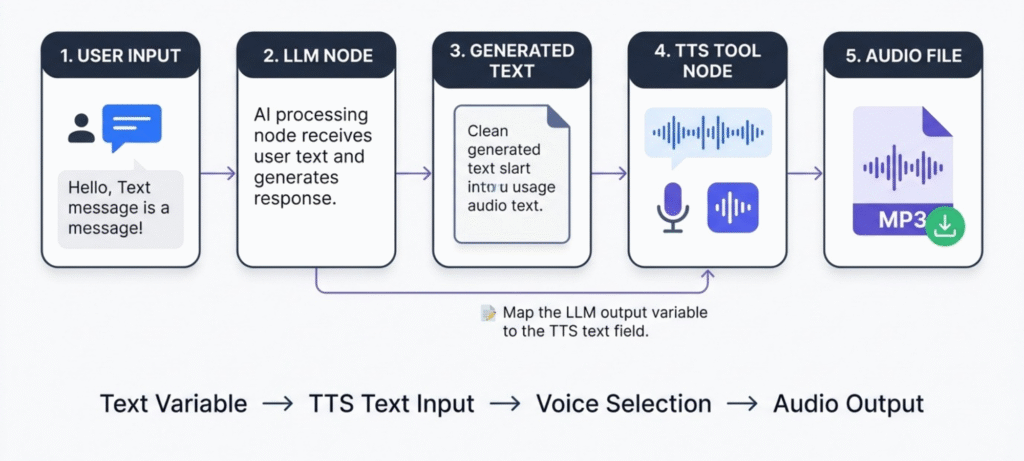
The TTS step is a tool node. In Dify, tools come from the plugin system, so a TTS plugin installed from the Marketplace shows up in the node picker like any other tool. You drop it after your LLM node, point its text input at the LLM’s output variable, choose a voice, and run the thing. If you want the bigger picture of why spoken output matters for learners, our piece on text to voice in education covers the classroom side of it.
A quick note on terms, because Dify uses a few. A Workflow runs once and returns an output. A Chatflow is conversational, so each turn can trigger the whole chain. Both can host a TTS node. The difference mostly shows up in how you deliver the audio at the end.
How Does Text-to-Speech Work in a Dify Workflow?
Six things happen, in order, whichever dify workflow tts text to speech tool plugin you end up choosing.
The user sends input. The LLM node produces a response as a text variable. The TTS node receives that variable as its text input. A voice gets selected, either by a Voice ID or a named voice depending on the plugin. The provider generates the audio. Then Dify hands you a file object that you can send back to the user or pass to a downstream node.
The part that trips people up is step three. The TTS node doesn’t “see” the LLM automatically. You have to map its text field to the LLM node’s output variable by hand, usually through the variable picker. If you skip that, or you map it to the original user input by mistake, you’ll get a perfectly working node that reads the wrong thing aloud. I’ve watched someone spend an hour debugging “bad audio” when the node was dutifully narrating the user’s question back to them.
Also worth knowing: the audio comes out as a file variable, not as text. Anything downstream has to treat it that way. That matters when you get to output settings later.
Best Dify TTS Plugins and Tools
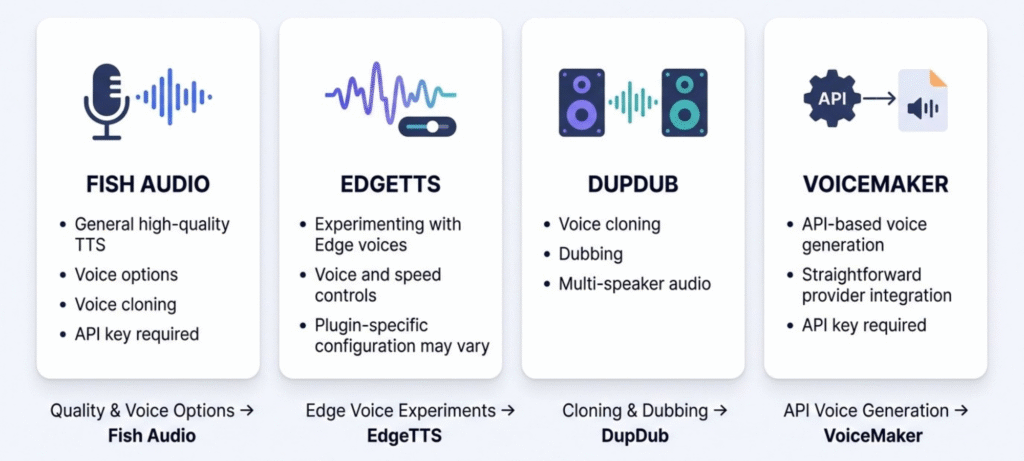
Choosing a Dify workflow TTS text to speech tool plugin is mostly a trade between quality, credentials and cost. Four names keep showing up on the Dify Marketplace and in search results. Here’s how they compare at a glance.
| Plugin | Best for | API key | Main strength |
|---|---|---|---|
| Fish Audio | General high quality TTS | Yes | Voice options plus cloning |
| EdgeTTS | Cheap experiments | Depends on the plugin build | Voice and speed controls |
| DupDub | Cloning and dubbing | Yes | Multi-speaker audio tools |
| VoiceMaker | API based voice generation | Yes | Simple TTS integration |
Treat that table as a starting point, not a verdict. Plugins get updated, and what a listing says today can shift.
Fish Audio
Fish Audio is the one I’d look at first if you want a clean, documented path. The Fish Audio Tool is listed on the Dify Marketplace as a text-to-speech tool you can add to a Chatflow or Workflow, with the text and a Voice ID as the core inputs. It needs an API key and authorization before it will run.
It also supports voice cloning from a short audio sample, which is the reason a lot of people pick it over a plain stock voice. If all you need is “read this paragraph out loud,” that’s more than you need, but it’s nice to have the door open.
EdgeTTS
EdgeTTS is built around Microsoft’s Edge text-to-speech engine, and it’s popular because people associate it with free neural voices, many languages, and controls for speaking rate and pitch.
Here’s the catch, and it’s an important one. “EdgeTTS the engine” and “the EdgeTTS plugin on the Dify Marketplace” are not the same thing. At least one listed plugin describes its own API configuration, including a service endpoint. So don’t assume it works with zero credentials. Open the plugin page, read what it asks for, and go from there.
DupDub
DupDub is the heavier toolkit. Beyond plain speech synthesis it handles multi-speaker audio, voice cloning, and dubbing, so it makes sense when your project is closer to video narration or localized voiceovers than a simple “read this answer” feature.
VoiceMaker
VoiceMaker connects Dify to the VoiceMaker service through an API key. You authorize it inside Dify, then call it as a tool in your workflow. It’s the straightforward option if you already have a VoiceMaker account or a reason to use that provider’s voices.
How to Add a TTS Plugin to Dify
This is the section most people came for. Adding a Dify workflow tts text to speech tool plugin takes about nine steps. The exact button labels move around between Dify versions, so read these as the shape of the process, not a screenshot tour.
Open the Marketplace and pick a plugin. From your Dify dashboard, head to the plugin area and browse the Marketplace. Search for the provider by name. The official Dify Marketplace is where you want to install from, rather than a random download link.
Install it. One click on the plugin page. Wait for it to finish before you move on, because the tool won’t appear in your workflow canvas until it’s done.
Add credentials. Open the plugin’s settings and paste in the API key if the provider needs one. Fish Audio and VoiceMaker do. For EdgeTTS, check the specific plugin’s page.
Authorize the tool. Some plugins make you click an authorize step after the key goes in. Do it. A plugin that’s installed but not authorized is the most common reason a TTS node errors out on the first run.
Add the TTS node. Open your workflow canvas, add an LLM node, and add the TTS tool node directly after it.
Connect the LLM output. In the TTS node’s text field, choose the LLM node’s output variable. Not the start node. Not the user input. The LLM’s answer.
Choose voice and audio settings. Set the Voice ID or voice name, the language, the audio format (MP3 or WAV where offered), and speed or pitch where the plugin supports them. Not every plugin exposes every option, so don’t panic if a setting you read about elsewhere isn’t there.
Run a test. Use the preview or test run with a short prompt first. Short text means fast feedback and a smaller bill if the provider charges per character.
Return the audio. Send the file variable to your end node or output. In a Chatflow, that usually means attaching it to the reply. In a Workflow, it becomes an output field you can download or pass to an API consumer.
Example Dify TTS Workflow
Let’s make it concrete. The user asks: “Explain photosynthesis in simple terms.”
The Start node collects that question. The LLM node answers in a few short paragraphs, and you’ve told it in the system prompt to write for the ear, meaning short sentences and no markdown symbols. That last bit matters more than it sounds. TTS engines will happily read out asterisks and pound signs, and it sounds ridiculous.
The Fish Audio TTS node takes the LLM’s answer, uses your chosen Voice ID, and outputs an MP3. The End node returns both the text and the audio file.
So: Start, LLM, Fish Audio TTS, End. Four nodes. If your first version has more than that, you’re probably overbuilding it. This is also the smallest working version of a Dify workflow tts text to speech tool plugin setup, and everything bigger is built on top of it.
One small improvement worth making early: add a short cleanup step, either in the LLM prompt or a code node, that strips headings, bullets and emoji before the text reaches the TTS node. It’s a five minute change and it saves you from awkward audio later. If you’re thinking about where this fits in a bigger automation, it helps to understand the difference between an AI chatbot and an AI agent, since a voice workflow sits somewhere between the two.
Fish Audio API Key for Dify: How It Works
People search “dify plugin fish audio api key” because the key is where most first attempts stall. The sequence is simple once you see it.
You create or open your Fish Audio account and generate an API key from the account area. You install the Fish Audio Tool from the Dify Marketplace. You open the tool’s authorization settings in Dify and paste the key in. Then you add the node, pick a voice, map the text, and run.
Two practical warnings. Keep the key out of screenshots and shared workflow exports, because anyone holding it can spend your credits. And if the node suddenly starts failing after working fine, check the account balance or usage limits before you rebuild anything. Expired or exhausted credentials look a lot like a broken workflow.
Dify TTS vs Speech-to-Text
Search results around this topic also surface “dify speech to text,” which is a different thing and worth separating so you don’t install the wrong tool.
| Technology | Direction | Typical example |
|---|---|---|
| TTS | Text to speech | An AI reads its answer aloud |
| STT | Speech to text | A user speaks into a microphone |
| ASR | Speech to text | Transcribing a recording |
STT and ASR are basically two names for the same direction. If your app needs voice input, you’ll look at speech recognition. If it needs voice output, you’re in TTS territory. Plenty of voice assistants use both: speech in, LLM in the middle, speech out.
Is There a Free Dify TTS Plugin?
Short answer: sometimes, and it depends.
Some Dify TTS setups cost little or nothing in software terms. But whether yours is truly free depends on the plugin, the external provider behind it, API limits, and how you host Dify. A plugin can be free to install and still sit on top of a service with usage caps or a paid tier. Self-hosting Dify removes the platform bill but not the provider’s.
So when a page tells you “EdgeTTS is completely free, no API needed,” be a little skeptical. It may be true for the underlying engine and false for the specific plugin you install. Read the plugin’s own listing. That’s the only source that tells you what your setup actually requires.
If budget is the main driver, test with a short sample, check what the provider charges per character or per minute, and do the math for your expected volume before you commit a production workflow to it.
Dify TTS Plugin Troubleshooting
This is where most of the real-world time goes. Here are the failures I’d check first, roughly in order of how often they show up.
“TTS is not enabled.” This message usually points to a setting rather than a broken plugin. Depending on your Dify version and app type, text-to-speech can be a feature you switch on at the app level, or it can rely on a TTS model configured under your model provider settings. Check both places. If you’re using a marketplace tool node instead, make sure the plugin is installed and authorized.
Invalid API key. Re-paste the key, watch for trailing spaces, and confirm it belongs to the right account and environment.
The TTS node can’t see the LLM output. Open the variable picker and make sure the LLM node sits upstream of the TTS node. Variables only flow forward.
No audio comes back. The node may have run fine while your End node isn’t exposing the file variable. Add the audio output explicitly.
Wrong or missing Voice ID. Voice IDs are provider specific. An ID from one service won’t work in another, and copying one with a typo gives you an error or a default voice.
Workflow runs, output is silent or empty. Check that the input text isn’t empty. An LLM node that failed upstream can hand the TTS node nothing, and nothing makes a very quiet audio file.
Unsupported audio format. Switch between MP3 and WAV, or pick a format the plugin lists as supported.
When you’re stuck, run the TTS node alone with a hard-coded sentence. If that works, the problem is upstream. If it doesn’t, the problem is the plugin or credentials. That one trick cuts debugging time in half.
Dify TTS Plugin vs Built-In Audio Features
Not every Dify installation needs a marketplace plugin. Dify’s ecosystem includes audio capabilities through model providers and its own API endpoints alongside the Marketplace tools. The official Dify documentation includes an endpoint for converting text to audio, where you pass text to synthesize or reference an existing message.
So which route is right? It depends on your Dify version, whether you’re building a Workflow or a Chatflow, and which provider you want. Marketplace plugins are the flexible, visual choice inside the canvas. Built-in or API-level audio is better when you’re calling Dify from your own application and want to control playback yourself. Check the docs for your version before you assume either one.
Which Dify TTS Plugin Should You Choose?
There isn’t one best plugin for everyone. Match the tool to the job.
| Your goal | Better starting point |
|---|---|
| A simple, documented TTS workflow | Fish Audio |
| Experimenting with Edge voices | EdgeTTS |
| Voice cloning or dubbing | DupDub |
| API based voice generation | VoiceMaker |
| Custom or enterprise setup | Evaluate provider and API requirements first |
If you can’t decide, build the same four node workflow with two plugins and listen. Ten minutes of testing beats an hour of reading comparison posts.
Dify TTS Use Cases
Once audio is a normal output of your workflow, a lot of things open up. AI assistants that talk back. E-learning modules that read lessons aloud. Accessibility features for people who prefer listening or can’t read a screen comfortably. Language learning tools where pronunciation matters. Audiobook style narration of generated or uploaded text. Customer support bots with a voice. Quick AI voiceovers for videos. Interactive agents that feel less like a chat box.
The common thread is that the text is already there. TTS just changes how it reaches a person.
Dify TTS Plugin FAQs
What is a Dify workflow TTS text to speech tool plugin?
A Dify workflow tts text to speech tool plugin connects a text-generation step with a speech-generation tool, so the workflow can turn generated text into an audio file.
What is Dify TTS?
It’s text-to-speech inside Dify, usually a plugin or tool node that converts LLM output into audio.
How do I add text-to-speech to a Dify Workflow?
Install a TTS plugin, authorize it, add its node after your LLM node, map the text variable, choose a voice, and return the audio file.
Which TTS plugin is best for Dify?
It depends on your needs. Fish Audio is a common starting point, DupDub suits cloning and dubbing, and EdgeTTS and VoiceMaker cover other cases.
Is there a free Dify TTS plugin?
Some setups cost little, but “free” depends on the plugin, the provider behind it, and usage limits.
How do I use Fish Audio with Dify?
Install the Fish Audio Tool, add your API key, authorize it, then add the node with your text and Voice ID.
Where do I get the Fish Audio API key for Dify?
Generate it in your Fish Audio account, then paste it into the tool’s authorization settings in Dify.
Can Dify convert text to MP3?
Yes, when the plugin you use offers MP3 output, which most TTS tools do.
Can Dify TTS clone a voice?
Some plugins, such as Fish Audio and DupDub, support voice cloning. Basic TTS plugins may not.
What is the difference between Dify TTS and speech-to-text?
TTS turns text into speech. Speech-to-text turns spoken audio into text.
Why is Dify TTS not enabled?
Usually a setting or authorization is missing. Check the app level feature, your model provider TTS settings, and the plugin’s authorization.
Is there a Dify TTS plugin for Android?
Dify TTS plugins work inside Dify applications and workflows, not as standalone Android apps.
Can I download a Dify TTS plugin?
You install plugins from the Dify Marketplace rather than downloading separate files.
Final Thoughts
Adding a Dify workflow tts text to speech tool plugin doesn’t mean rebuilding your app. An LLM writes the answer, a TTS node reads it, and the audio becomes one more output. Fish Audio, EdgeTTS, DupDub and VoiceMaker are just different ways of getting there.
Pick based on voice quality, API requirements, cloning needs and cost. Not on whichever plugin turned up first. Then test with one short sentence before you build anything bigger.