
Quick answer: ClassDojo works best for behavior and parent communication, which makes it a good fit for elementary classes. Google Classroom works best for assignments, feedback and grades, so older students get more out of it. Both are free to start, and lots of schools simply use the two together.
Can’t decide between ClassDojo vs Google Classroom? Join the club. Teachers, principals and parents all ask this, and it’s easy to see why. From the outside the two apps seem almost the same. They’re both on your phone, they both link a teacher with a class, and neither costs anything to try.
But use them for a week and the difference is obvious. ClassDojo is about the relationship between a teacher, a kid and the family at home. Google Classroom is about the schoolwork itself, who’s turned what in and when. Below I’ll go through what each one really does, where it lets you down, and how to choose so you’re not second-guessing yourself in November.
ClassDojo vs Google Classroom: Which One Should You Choose?
Forget the feature list for a minute. Ask what’s actually bugging you. Maybe it’s a room of five-year-olds who won’t settle, and parents who never hear what’s going on. That’s a ClassDojo problem. Or maybe it’s a pile of essays you have to collect, mark and hand back. That’s a Google Classroom problem.
For most people, that’s genuinely all there is to it. ClassDojo gives you points, class stories, student portfolios and fast messaging that translates itself. Google Classroom gives you assignments, due dates, rubrics, comments on student work, and a direct line into Docs, Slides, Sheets and Drive. They aren’t trying to copy each other, which is why a feature-by-feature showdown can send you in the wrong direction.
Here’s the quick version, depending on where you are:
- You teach kindergarten to grade 3 and want positive behavior routines: choose ClassDojo.
- You teach grade 6 and up and give out essays, projects and quizzes: choose Google Classroom.
- You teach grades 3 to 5: you might honestly want both. More on that below.
- You’re a parent trying to figure out what your school uses: ask which app the teacher posts assignments in, and which one sends the daily updates.
ClassDojo vs Google Classroom at a Glance
| Feature | ClassDojo | Google Classroom |
|---|---|---|
| Main purpose | Behavior, community, family communication | Assignments, feedback, grading |
| Best grade level | Pre-K to elementary | Upper elementary through college |
| Parent communication | Strong: messaging, class and school stories, translation | Limited: guardian email summaries |
| Assignments and grading | Basic, light on grading | Strong: due dates, rubrics, private comments, returned work |
| Behavior tracking | Core feature, with points and skills | Not built in |
| Student portfolios | Yes: photos, videos and journal entries | Work lives in Drive, not a portfolio feed |
| Integrations | Fairly standalone | Deep link to Google Workspace for Education |
| Cost | Free core app, optional paid family plan | Free with Workspace for Education, paid tiers add features |
| Learning curve | Very low | Low to moderate |
Use this table as a rough guide, nothing more. Features and plans change, so look at each company’s own pages before you roll either one out to a whole school.
What Is ClassDojo?
ClassDojo is half communication app, half classroom culture tool. You set up a class, invite the families, and then it’s points for kindness, teamwork, effort, whatever you want to encourage. Each student gets a little monster avatar and customizes it. Younger kids love this part. Honestly, it’s a big reason the app spreads from one classroom to the next.
But points are just the beginning now. Teachers post photos and short videos to a class story. Messages to families go out in the language spoken at home, since the app translates them automatically. There’s a school-wide story as well. Students build a portfolio of their work, and parents can open it from home. Timers, a group maker and attendance sit in a small toolkit. And Dojo Islands? That’s a separate play area, not part of the classroom tools.
So how widely is it used? ClassDojo says on its own website that it’s in 95% of US schools. Remember, that’s the company talking, not an independent study. Even so, if you work in an elementary school, chances are someone down the hall already uses it. For the latest features, head to the official ClassDojo website.
Where ClassDojo falls short: it was never designed to be a gradebook. You can attach work to a portfolio, but you can’t set up rubric-based assignments the way you can in a proper learning management system. Some teachers also don’t love the idea of behavior turning into a public scoreboard. Plenty of classes sidestep that by keeping points private, or by only using the positive skills.
What Is Google Classroom?
Google Classroom is a learning management tool that lives inside Google Workspace for Education. The teacher posts an assignment, attaches a Doc or a form, picks a due date, and students turn it in from whatever device has a browser. Then the teacher leaves comments, grades it and sends it back. Everything stays in one place.
Where it really pulls ahead is how nicely it plays with the rest of Google. A student types in Docs, the teacher comments right on the page, and the file sits neatly in Drive. No more emailing attachments back and forth. Rubrics, grading categories and originality checks (on eligible plans) give older students a bit more structure. You can see Google’s own overview on Google for Education’s Classroom page.
Where Google Classroom falls short: it’s a little cold. There’s no behavior system, no avatar, and parents mostly hear from it through email summaries. For a six-year-old, the screen can be too much. And if a family is hoping for daily photos from the classroom, it just won’t give them that.
Key Differences Between ClassDojo and Google Classroom
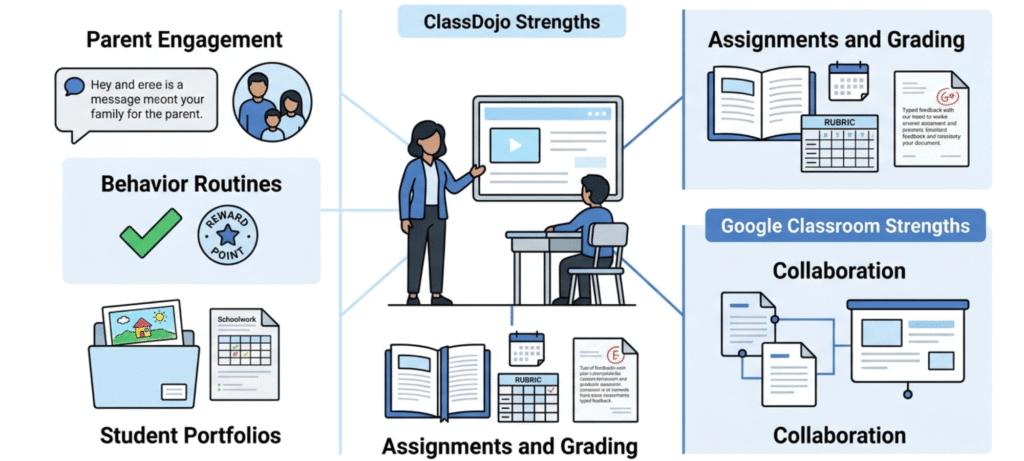
ways. ClassDojo is built around positive behavior, keeping parents in the loop and showing off what students have done. Google Classroom is built around schoolwork: organizing it, keeping deadlines straight and giving feedback on assignments. Honestly, the gap gets obvious once you watch each one handle an ordinary school day.
Classroom Management
ClassDojo takes care of the mood in the room. Points, skills, quick rewards: an easy way for a teacher to praise good habits as they happen. Google Classroom takes care of the work. Who’s handed something in? Who’s behind? Who’s still waiting for feedback? It shows you all of it. So which one manages a class better? That depends on what you mean by managing. Behavior, or workflow?
Parent Engagement
This is ClassDojo’s home turf. Parents get updates, photos and messages in a feed that feels familiar, and the translation feature helps a lot in homes where English isn’t the first language. Google Classroom can email guardians a list of missing and upcoming work. That’s useful, sure, but it won’t make a parent feel connected to the classroom. Summary emails just don’t do that.
Assignments and Feedback
No contest here, Google Classroom wins. Due dates, attachments, private comments, rubrics and returned grades are all part of the everyday flow. ClassDojo lets students share their work, but it feels more like a display wall than an assignment system.
Collaboration
Want students to write an essay together, build a slide deck or fill in a shared spreadsheet? Go with Google Classroom and Workspace. ClassDojo is better for community than for teamwork on a project. It’s great for sharing and celebrating, not so much for making things together.
Student Login and Access
Passwords and little kids don’t mix, and ClassDojo gets that. Students can usually join with a class QR code or a text code from the teacher, and some schools link a Google account too. Google Classroom needs a school Google account. That’s easy for older students and a real obstacle for the youngest ones. If you teach kindergarten, QR logins will probably save you a lot of stress on the first day.
Pricing: Are ClassDojo and Google Classroom Really Free?
Yes, both have a free option, and for a lot of classrooms that’s all they’ll ever need.
ClassDojo’s core app costs nothing for teachers, families or students. Messaging, points, class stories and the basic tools are all included. There’s also a paid family subscription called ClassDojo Plus, which is optional and adds things like progress reports and AI-powered homework help.
Google Classroom costs nothing for schools that sign up for Google Workspace for Education Fundamentals. Paid tiers exist for schools wanting extras, like deeper analytics, tighter security controls or originality reports. Which extras you get depends on the edition. Personal Google accounts can run a basic version of Classroom too. Still, most schools pick managed Workspace accounts, because the school ends up with far more control that way.
Prices and plan names keep changing, so check each company’s own site before you set a budget. And here’s something worth thinking about. For most schools, money isn’t the real cost. Teacher time is. A free tool that leaves everybody confused will eat up many more hours than a simple paid one ever would.
Privacy and Student Data
Often this is what settles the decision, especially for district leaders. Children use both tools, so both need to handle student data with care. In the US, that means working within rules like COPPA and FERPA. What a school is actually responsible for can vary from one case to the next. So before adopting either tool, a school should read the platform’s privacy terms and look through the data-sharing settings. It should also check which student privacy requirements apply to it.
The bigger practical gap is in how data gets in. Google Classroom runs through Workspace, so the school’s IT team looks after accounts, sharing settings and data policies. For a district, that control sitting in one place is a real plus. ClassDojo works differently. Individual teachers often set up their own classes. So schools do better with a clear policy on who is allowed to use it and how families get invited.
Whichever one you pick, read the privacy policy yourself instead of relying on someone else’s summary. Decide, too, which photos, names and comments are fine to share, and write those rules down. Want a hands-on walkthrough? Our guide on keeping student data safe online covers the habits that matter most: upload less, and check your sharing settings every so often.
Which Is Better by Grade Level?
Pre-K to grade 2: ClassDojo. Little kids go wild for avatars and points, and parents enjoy the photo updates. Assignment tools hardly matter at this age.
Grades 3 to 5: both can work. A lot of teachers use ClassDojo for class culture and family messages, then add Google Classroom for typed assignments once kids are comfortable on a keyboard.
Grades 6 to 8: Google Classroom. Students are moving between several teachers, so having one steady spot for deadlines and feedback matters more than avatars.
Grades 9 to 12 and college: Google Classroom, or another full learning management system. By now points and avatars feel out of place, and the goal is getting students to manage their own deadlines.
If your school wants a single tool for every grade, Google Classroom is the safer all-rounder. ClassDojo does its best work when you keep it to the early years.
Can You Use ClassDojo and Google Classroom Together?
Yes, and it’s more common than you’d expect. The two hardly overlap, so they don’t get in each other’s way. A simple split looks like this:
- ClassDojo handles daily communication with families, positive behavior routines and sharing classroom moments.
- Google Classroom handles assignments, deadlines, feedback and grades.
The risk here is overload. Picture parents checking three apps and students juggling two logins. Most people quit after a week. So set one rule and stick to it: one place for communication, one place for schoolwork. Say it to families in the first week, out loud if you can. Choosing good tools matters, sure. Using them well matters just as much, and that’s why we wrote about why classroom tools matter beyond the feature lists.
Alternatives Worth Considering
Neither one fits? Fair enough. Seesaw gets a lot of love for student portfolios in the early grades. Remind is the simple option, handy if all you ever send is one-way announcements. If your school already runs on Microsoft Teams for Education or Canvas, there’s not much reason to leave. Schoology and similar platforms are a bigger step up. Districts use them as a full learning management system, with grading, analytics and communication all in the same place. Whichever you try, begin with a small pilot group. Don’t roll it out to everyone on day one.
How to Decide in Five Minutes
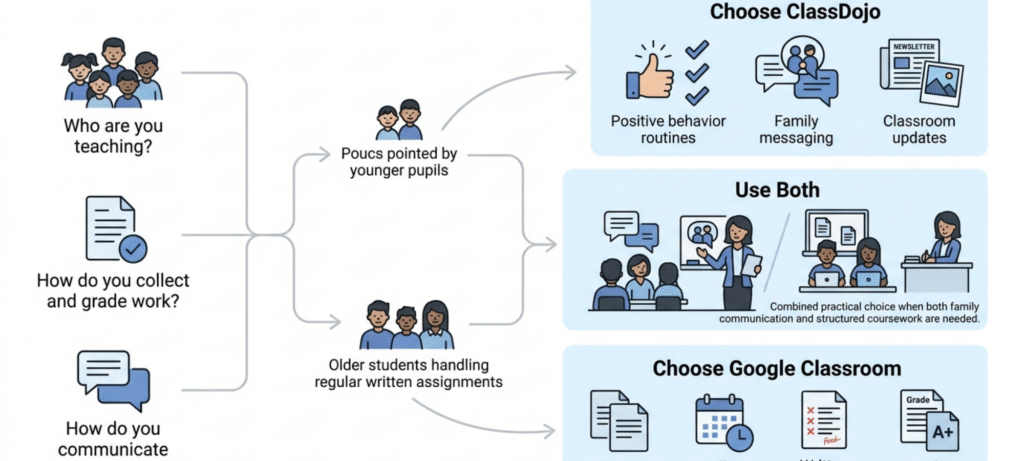
Go through these questions in order:
- Do my students hand in written or typed work regularly? If yes, lean Google Classroom.
- Do I need friendly, daily contact with families? If yes, lean ClassDojo.
- Is my school already on Google Workspace for Education? If yes, Google Classroom is almost free to adopt.
- Are my students under about nine? If yes, start with ClassDojo.
- Do I need a gradebook? If yes, go with Google Classroom, or a dedicated gradebook tool.
Still split down the middle? Run both for a month and see which one your students and parents actually open.
Frequently Asked Questions
Is ClassDojo still used?
Yes. ClassDojo is still widely used, mostly in elementary schools, for behavior tracking, class stories and messaging parents. The core app is still free, and over the years it has added things like Dojo Islands and student portfolios.
Is Google Classroom free or paid?
It’s free for schools that use Google Workspace for Education Fundamentals. Paid Workspace tiers add extras such as advanced analytics and originality reports, so the answer depends on your school’s plan.
Is ClassDojo worth it?
For elementary teachers who want an easy way to encourage good behavior and stay in touch with families, yes, it’s worth a try, and the core app costs nothing. It’s less helpful if your main need is collecting and grading assignments.
Which is better for parents, ClassDojo or Google Classroom?
ClassDojo. It gives parents direct messaging, photos, class stories and automatic translation. Google Classroom mostly sends email summaries of upcoming and missing work.
What can I use instead of ClassDojo?
Seesaw, Remind, Microsoft Teams for Education and Canvas are the usual alternatives. Pick based on whether you need portfolios, announcements or a full learning management system.
Can students use ClassDojo without a parent account?
Yes. Teachers can usually give students access with a class QR code or a text code, so a child doesn’t need a parent account to log in at school. Families can still connect on their own to follow along at home.
Can a school use both ClassDojo and Google Classroom?
Yes. Many schools use ClassDojo for communication and classroom culture, and Google Classroom for assignments and grades. Just make sure families know which app does what.
Final Verdict
When it comes to ClassDojo vs Google Classroom, there’s no one winner, but each job has a clear one. ClassDojo wins for early elementary, positive behavior and keeping families close. Google Classroom wins for assignments, feedback and anything that feels like real coursework. For most schools, the best move isn’t picking a champion. Give each tool its own role, and keep the setup simple enough that parents and students never get lost.
If you remember just one thing, make it this: choose the tool that matches your students’ age and the problem you’ve actually got this term. You can always bring in the second one later.