

Wondering what is Clever for schools? Picture one login page that opens every app a student or teacher needs for class. Kids type in their details once, and the reading program, math site and everything else their teacher assigned are right there waiting. No more juggling a different password for each one.
Parents tend to spot that side of it first. What they don’t see is the data work happening in the background. The school’s records system sends class lists straight into the learning apps, so nobody has to key in names by hand when a student joins or switches classes. And for the little ones who can’t manage a password yet, a printed badge held up to the camera does the job.
If your child mentioned “the Clever page” at dinner, or you’re a teacher whose district just switched it on, this guide explains what Clever does, how login works, what it costs, and where it stops being useful.
What Is Clever for Schools and What Is It Used for?
Clever is basically the front door to a school’s digital tools. Most schools have a dozen programs or more running at once: the learning management system, a reading app, a math practice site, the digital textbook, and often a video tool on top. Every one of them wants its own account. Now picture that across a few hundred students. Passwords get forgotten by the dozen, and the IT team’s inbox fills up with reset requests.
Clever sits between the school and those programs and does two jobs:
- Access. Students and teachers sign in once and reach their approved apps from a personal dashboard.
- Data. The school’s records supply accurate rosters to each connected app.
It helps to be clear about what Clever is not. It isn’t a gradebook, a lesson-delivery system or a school website, and it doesn’t teach anything on its own. It connects people to the programs that do. According to the official Clever overview, Clever replaces older habits such as emailing CSV files to software vendors, a process that was slow and not very secure.
Clever says its platform supports more than 100,000 schools, which is one reason students and teachers so often run into the Clever Portal as part of their school’s digital setup.
How Does Clever Work?
Three pieces do the heavy lifting. Each one solves a different problem.
The Clever Portal
The Clever Portal is the part students and teachers actually see. After signing in, each person lands on a personalized page that shows the apps their school has connected and assigned to them. A fourth grader might see a reading program, a math site and a digital library. A high school teacher might see a lesson tool, a video platform and a grading app.
The idea is simple. Less time hunting for links, more time learning. No bookmark folder, no sticky note of passwords.
Single Sign-On (SSO)
Single sign-on is the reason the Portal feels so easy to use. With SSO, one login gets a student or teacher into every compatible app tied to their school account. How smoothly that works varies, though. It comes down to how the school set things up, which identity provider it runs on, and what permissions each person has been given. A few apps will still throw in an extra step. It’s not magic.
The good part is that Clever doesn’t ask schools to start over. It plugs into the systems they already use, like Google or Microsoft accounts, or it takes login details the district syncs across. So a lot of students just keep signing in the way they always have.
Automated Rostering and Secure Sync
This is the part most parents never see and most IT teams care about the most. Schools keep their official records of students, teachers and classes in a Student Information System (SIS). Clever Secure Sync transfers that roster information to connected applications, either through a supported connection to the SIS or through an upload. The school decides which information gets shared with which authorized app.
When a student transfers in, changes sections or leaves, the SIS changes, and connected apps can receive the update through the configured sync. Teachers don’t have to rebuild class lists in five different programs during the first week of school.
What Can Students and Teachers Do With Clever?
So what is Clever for schools in daily practice? For students, it’s mostly about convenience. They open the Portal, tap an app and start working. If an app they expect isn’t there, that’s usually a school setting rather than a student mistake, and their teacher can help sort it out.
Teachers may also use several tools to organize classroom resources and see how students use connected applications:
- Teacher Pages. Teachers can arrange the apps, links and files their class uses so students find everything in one spot.
- Clever Library. A place for teachers to discover new classroom resources and add them to their Teacher Page.
- Class Analytics. Teachers can view engagement information for the connected programs their students use.
- Basic login support. Teachers can help students check their credentials and find the right app. Problems with account settings or access permissions may need the school’s IT team.
Administrators get their own view through Clever Analytics, which looks at usage across the whole school organization. Class Analytics is the classroom-level version for teachers. A word of caution about both: usage numbers show that a student opened an app and spent time in it. They don’t prove the student learned anything. Treat them as a useful signal, not a grade.
What Are Clever Badges?
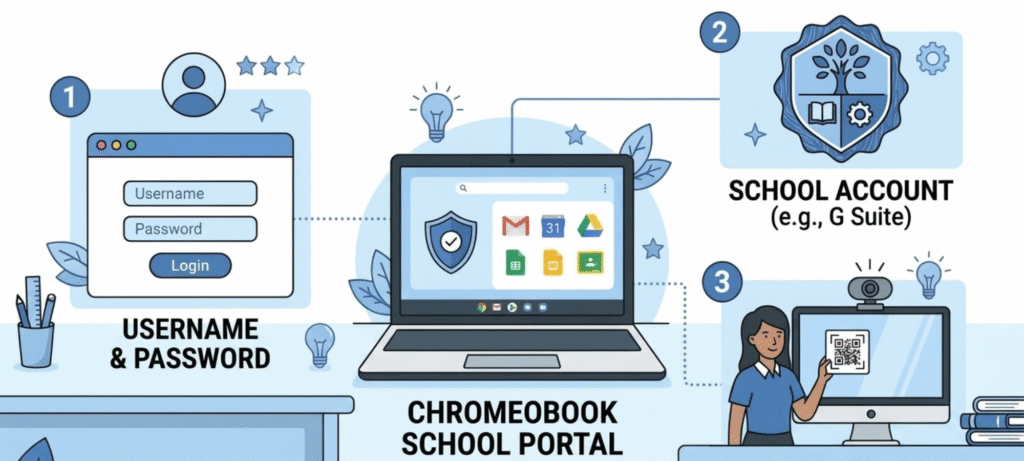
Typing a password is hard when you’re six. Clever Badges are designed for exactly that problem. A Badge is a printed card with a QR-style code. A young student holds it up to the device camera, and Clever signs them in.
Badges are especially useful for younger students who find usernames and passwords difficult. A few practical points:
- A school has to enable Badge login. Not every Clever school does.
- The device needs a working camera and a compatible browser.
- If a Badge is lost, tell the teacher or school IT team promptly. An administrator can void the missing Badge and issue a replacement, which stops someone else from using it to get into the student’s account.
If a Badge keeps failing to scan, try better lighting and hold it flat and steady before assuming something is broken. Glare on a laminated card is a surprisingly common culprit.
How to Log In to Clever for Schools
Most people searching what is Clever for schools also want to know how to get in, so here is the plain version of login.
Clever Student Login
- Open your school or district’s Clever login page. Your teacher or school will usually share the link, or you can start at Clever’s main site and choose the student option.
- Sign in with the method your school uses: a username and password, a Google or Microsoft account, or a Badge.
- Once you’re in your Portal, select the app you need.
How to Select Your School on Clever
If you start from the general Clever login page, it will ask you to find your school or district. Type the name, pick it from the list and you’ll be taken to the right sign-in screen. Many districts share a direct link that skips this step. If your school isn’t in the list, ask a teacher or the front office for the correct link, since some districts use a custom address.
What to Do If Your Clever Login or Password Does Not Work
Don’t keep guessing, especially on a school account. Work through these steps in order:
- Check for typos and caps lock.
- Make sure you picked the right school or district.
- If you normally sign in with Google or Microsoft, use that button instead of typing a Clever-specific password.
- If an app is missing from your Portal, tell your teacher. It may not have been assigned to you yet.
- Still stuck? Contact your teacher or the school IT help desk. They can reset credentials or check your account.
Can Students Use Clever at Home?
Often, yes, as long as the school allows it. Students need the correct login details and a compatible device. Which apps appear, and how they sign in, still depends on how the school set things up.
Is Clever Free for Schools?
For the core pieces, mostly yes. Clever says its main features, including Secure Sync, single sign-on and the Portal, are free for school organizations. Students and families don’t pay.
“Free” doesn’t cover everything, though. Clever also sells optional paid tools, including Identity Management (IDM) for systems like Google, Active Directory and Entra ID, and Classroom multi-factor authentication (MFA) built for K-12 use. A district can run the free tier without ever buying those.
So the honest answer to “is Clever free for schools” is that the essentials are and the extras aren’t. Individual apps connected through Clever may also carry their own licensing costs, which the school pays separately.
Is Clever Safe for Students?
No platform is risk-free, so be wary of anyone promising total safety. What matters is how the system is configured and managed.
A centralized sign-in can reduce the need for students to remember separate credentials for every connected app. Clever also says schools control which student information is shared with authorized applications. And moving away from emailed spreadsheets removes a practice that was risky to begin with.
Still, a school’s privacy practices depend on its configuration and on the apps it approves. Strong credentials, careful app approvals and staff who know what’s being shared all matter. For a wider look at protecting student information, see this teacher’s guide to keeping student data safe online. Parents with questions about their own child’s data should ask the district which apps receive it, then read Clever’s current privacy information and the privacy policies of the specific apps involved.
Benefits and Limits of Clever
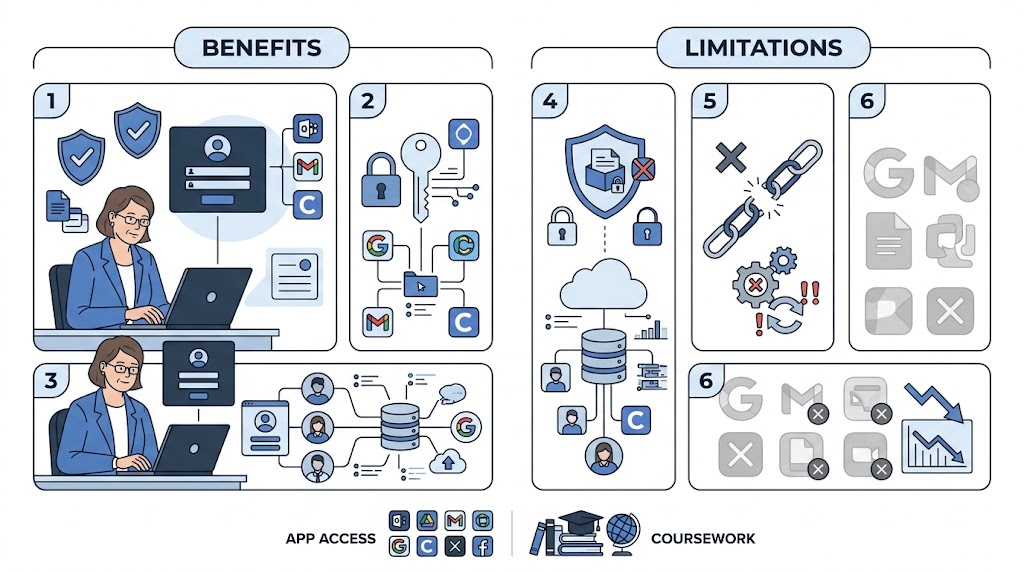
What it does well
- Cuts password fatigue and lost-login time for students
- Saves teachers from rebuilding rosters in every app
- Gives IT teams one place to manage access
- Makes adding a new app faster
Where it falls short
- Students only see apps their school has connected, so availability varies a lot between districts
- Bad data in the SIS means bad data everywhere, because Clever passes along what it’s given
- Badge login depends on school settings and device cameras
- It manages access, not learning, so it won’t fix a weak curriculum or a clunky app
Clever vs. a Learning Management System
Clever and an LMS get mixed up a lot, and that’s usually the point where people start asking what is Clever for schools in the first place. The LMS is where the schoolwork happens. Think Google Classroom or Canvas: homework gets posted, quizzes get taken, grades show up. Clever doesn’t replace either of those.
Where it fits is earlier in the day. A student logs in to Clever first, taps the LMS icon, and lands in their class without typing anything else. Same single sign-on, no second password. Plenty of schools run both. And if you want to see how the grading side works for teachers, this piece on how cloud gradebooks are changing classroom management adds useful context.
Who Can Set Up Clever for a School?
Setup happens at the district or school-organization level. The person who signs up needs administrative access to the SIS and the authority to accept Clever’s terms of service. That usually points to a chief technology officer, an SIS manager or another IT administrator.
Most teachers and principals don’t have that level of access. If you’re a teacher hoping your school will adopt Clever, the best move is to raise it with your district’s technology team.
Frequently Asked Questions
What is Clever for schools in simple terms?
It’s a platform, free for schools at its core, that lets students and teachers sign in once and open all their approved learning apps from a single page.
Is Clever an app I download?
Usually you use it in a web browser through your school’s Clever login page. Some devices also offer a Clever app, but your school decides how students access it.
Do I need a password for Clever?
It depends on your school. You might use a username and password, a Google or Microsoft account, or a Badge for younger students.
Why can’t I see an app in my Clever Portal?
The school or your teacher may not have assigned it to you yet. Ask your teacher to check your access.
Is Clever the same as Google Classroom?
No. Google Classroom is a place to manage coursework. Clever helps you reach it and other apps with one sign-in.
Does Clever cost parents anything?
No. Families don’t pay to use Clever. Any costs sit with the school and the apps it chooses.
Conclusion
For most schools, yes, it’s worth it. Clever fixes a boring but very real mess: too many apps, too many passwords, and rosters that someone has to update by hand. Students start the day with one less thing to fight with, teachers spend less time on setup, and the IT team gets a tighter grip on who can open what.
Parents don’t need to know much more than two things: where your school’s login page is, and who to ask when an app goes missing. Teachers and administrators are better off with a straight answer to what is Clever for schools, including what it can’t do, so nobody expects it to replace the gradebook or the LMS. Before you rely on any feature, check the official Clever site for what’s current, and ask your district which tools are actually turned on.