

Dealing with Individualized Education Programs means balancing a lot at once. Between the endless paperwork, strict legal deadlines, long meetings, and complex state rules, it is easy for school teams to feel overwhelmed. That is why many schools use EasyIEP to keep the whole process organized in one spot.
Schools use this web-based special education management tool to handle everything that goes into an IEP. It acts as a secure digital filing cabinet for student records, tracking important accommodations and day-to-day progress. This guide will walk you through how the EasyIEP login works, how families can see student records, and how to fix common account issues without the headache.
What is EasyIEP?
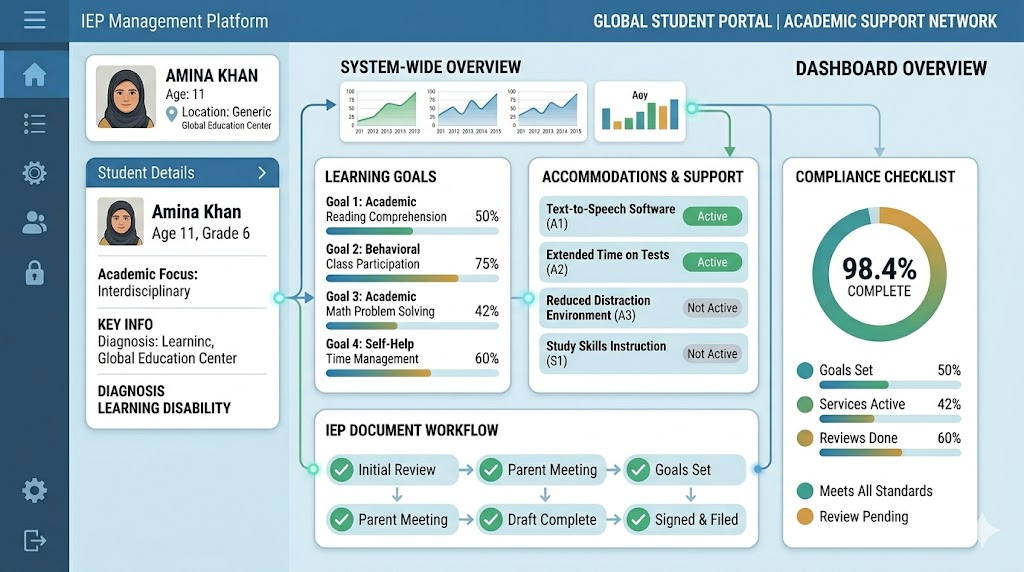
EasyIEP is an online special education software platform built to help school districts manage IEPs from start to finish. It gives teachers, specialists, and administrators a single, secure place to view a student’s learning plan, history, and goals.
About EasyIEP
- Developer: Public Consulting Group (PCG)
- Software Family: Part of the EDPlan suite of education tools
- Usage: Active in school districts across many different states
- Main Job: Keeps track of special education workflows, compliance, and student data
A big reason districts use the platform is to stay aligned with the federal Individuals with Disabilities Education Act (IDEA). The system actively checks forms for missing details before you can close them out. This stops simple paperwork mistakes from turning into legal or compliance issues later on. If you ever need to look up official updates on these federal rules, you can read through the guide on the U.S. Department of Education Individuals with Disabilities Education Act (IDEA) website.
EasyIEP Login: How to Access Your Account
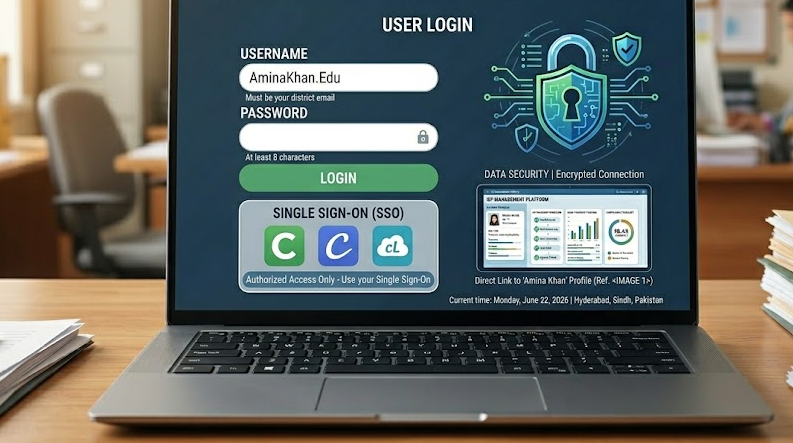
If you are trying to find the EasyIEP login or EasyIEP log in page, keep in mind that your access link depends completely on your specific school district. Because student health and education records are highly confidential, there is no master login page for everyone. Every school system gets its own unique, secure web address.
Staff and Educator Access
Teachers, case managers, speech therapists, and administrators use a specific district link to open the system.
- Your District’s URL: Your school will give you a direct web address. Usually, it looks like
[go1.pcgeducation.com/YOUR-DISTRICT-NAME](https://go1.pcgeducation.com/YOUR-DISTRICT-NAME)or uses a similar number like[go3.pcgeducation.com/DISTRICT-CODE](https://go3.pcgeducation.com/DISTRICT-CODE). - Single Sign-On (SSO): A lot of schools link this tool directly to their main employee portals like Clever or ClassLink. If your district does this, just log into your normal teacher dashboard first, find the icon for EasyIEP or EDPlan, and click it to log right in.
- Standard Passwords: If your school does not use single sign-on, the district system manager will hand out a distinct username and password. These usernames usually follow a set pattern, like your work email address or your first and last name combined.
Parent and Guardian Access
Parents do not log in through the main staff page. Instead, families use a separate, secure portal called EDPlan Connect. This setup allows parents to check on draft IEP documents, look over goals, sign official paperwork online, and message the school team from a computer or phone.
To get into the parent portal, the school has to invite you first using the exact email or phone number they have on file. You will not be able to set up an account on your own until the district sends over that official access link.
EasyIEP Parent Portal: What Parents Can Do
The EasyIEP parent portal, which runs under the name EDPlan Connect, helps parents and teachers stay on the exact same page. Instead of waiting around for thick packets of mail or playing phone tag with case managers, parents can jump online to see exactly what is happening with their child’s services.
Once you are logged into this secure portal, you can take care of several core tasks:
- Review IEP Paperwork: Read through current IEP drafts, older plans, evaluation reports, and your parental rights whenever you need to.
- Track Active Goals: See how your child is doing with their academic, social, or behavioral goals as the school year moves along.
- Sign Documents Online: The portal includes a secure digital signature tool. You can use it to give permission for a new service, sign off on annual plan changes, or confirm you attended an IEP meeting without printing a single page.
- See Therapy Logs: If your child gets related services like speech, physical, or occupational therapy, the portal lets you look at the time logs so you know exactly when those sessions happened.
Key Features and Tools for Educators
For school teams, the platform works as an all-in-one case management system. It gets rid of the old way of doing things—like saving random text documents on a desktop or digging through physical folders—and puts all student details into a single workspace.
- Guided Document Writing: The system walks teachers step-by-step through setting up accommodations, testing changes, and goals, flagging simple mistakes before the document is saved.
- Timeline Reminders: Built-in alerts help track strict state and federal deadlines. The system lets case managers know months in advance when a yearly review or a three-year re-evaluation is coming up.
- Simple Progress Reports: Teachers and therapists can type in quick data points after working with a student. The software turns those numbers into clear visual charts, which are incredibly helpful to show families during progress meetings.
- Data Sharing with the District: The platform links directly to the school’s main Student Information System (SIS). This means basic details like home addresses, grade changes, and classroom placements update on their own without anyone having to type them in twice. For administrators comparing local student placement numbers against broader regional trends, these systems help align internal tracking with databases kept by the National Center for Education Statistics (NCES).
Local District Access Examples
Because this software is built to match local rules, the login steps and access settings change depending on how your specific district sets up its technology.
EasyIEP Dallas ISD: How District Access Works
EasyIEP Dallas ISD settings are managed directly through the school district’s technology department. Teachers and support staff have to log in using the official Dallas ISD staff portal. Parents and school employees usually get their specific login instructions straight from their campus or the special education office. If you work or have a student in Dallas, checking the special education page on the Dallas ISD website is the fastest way to find the right login link and password rules.
Paterson EasyIEP Login and Access Information
Paterson EasyIEP access uses the same localized setup. You must use the exact web credentials given to you by the district. Staff members in the Paterson Public School District need to use the specific web link assigned to New Jersey school systems running the PCG software. If you get locked out or lose your password, you will need to reach out to the Paterson school IT helpdesk, since outside support teams cannot change local school accounts.
EasyIEP Troubleshooting: Fixing Common Issues
Tech glitches right before a big annual IEP meeting can be incredibly stressful. Here is a look at the most common issues users face and exactly how to fix them.
Safe Navigation Within the Platform
A massive portion of system errors and lost notes happens because of a simple habit: using your regular web browser buttons.
Important Usage Rule: Never use your browser’s “Back”, “Forward”, or “Refresh” arrows while working on a student’s file. Doing this breaks your secure login connection and can instantly wipe out unsaved text or goals you just wrote. Always use the menus, tabs, and save buttons built right onto the page itself.
Resolving Account Lockouts
If you type in the wrong password a few times in a row, the platform locks you out to protect student privacy.
1.Double-Check the URL:Step 1.
Make sure you are looking at your specific district’s page and didn’t accidentally click a link for a different school system or state.
2.Take a Short Break:Step 2.
Most security blocks are temporary and last about 15 to 30 minutes. If you leave the page alone for a little bit, the system usually resets the lock on its own.
3.Use Your School IT Page:Step 3.
If your district uses a single login link for everything (like Clever), go to your school’s main password reset page to fix your account. The change will carry over to the IEP tool.
4.Clear Out Old Data:Step 4.
If the screen just spins or keeps going back to a blank login box, clear your browser’s cookies and cache, or try opening your district link inside a private or incognito window.
Missing Students in the Parent Portal
Sometimes a parent logs into the system but their child’s name or paperwork does not show up on the screen. This is almost always a data entry mix-up at the school level.
- Talk to the Team: Reach out to the school’s special education coordinator and ask them to open the student’s main contact card.
- Look for Double Profiles: It is common for a parent to get entered into the system twice by accident (like once with a middle initial and once without). The school just needs to merge those two files together so all children show up under one single parent login.
- Check the Email Spelling: The email address you use to log into the portal must match the exact spelling typed into the school’s database. A tiny typo or an old email address will keep the system from linking the parent account to the child’s file.
Frequently Asked Questions
What is EasyIEP?
EasyIEP is an online platform that school districts use to create, manage, and look after Individualized Education Programs. It keeps paperwork in one secure place, tracks student progress charts, and helps schools follow special education laws.
How do I complete EasyIEP login?
You usually log in through a special link provided by your specific school district. Teachers and staff get their links and setup details directly from their school’s tech team. Parents use a separate portal called EDPlan Connect, which requires an official invitation link from the school.
Is EasyIEP only for teachers?
No, it is used by a mix of school staff and families. Special education teachers use it to write plans, general education teachers use it to check student accommodations, and physical or speech therapists use it to log their weekly sessions. Parents use the connected family portal to read and sign documents.
Is EasyIEP easy to use?
It is built to make IEP organization simpler, but getting used to it takes a bit of time and practice. While the guided forms and automatic error checks stop you from making mistakes, the system has a lot of deep menus and specific settings that run smoother once you have had some basic training.
What should I do if I forget my password?
If your school uses a shared dashboard login like Clever, you will need to change your password through your district’s main technology website. If your school uses a standalone login page, click the “Forgot Password” option on that screen or reach out to your campus special education data manager for help.