

So the school emailed you a link and told you to “log in to Veracross.” Okay, but what actually is it? Think of it as the school’s online hub. Veracross is a student information and school management system, and it’s mostly private and independent K-12 schools that run on it. As a parent, you’ll use it to check your kid’s schedule, pull up report cards and catch school notices. Students use it to see their classes and what’s due. Teachers and the front office? They lean on it all day, from attendance to billing.
Below, I’ll cover how to sign in, what’s waiting for you inside, where grades live, and what to try when the login fights back. Fair warning: each school configures Veracross its own way, so your screen might not match mine exactly. Don’t panic if a menu has a different name.
What Is Veracross and What Is It Used For?
The simplest way to picture Veracross is one big database that the entire school shares. According to the company, it’s made for private and independent schools, and it handles academics, admissions, fundraising, alumni relations, the business office and tuition billing. If you want it in their words, the official Veracross website lays it all out.
So why does having one database matter? Look at how a lot of schools actually run. Admissions has its own records. The registrar has another set. Finance keeps a third. Then a family enrolls, and somebody has to retype the same details into each one. It’s slow, and mistakes creep in. A connected platform skips that. The family record follows the student from the very first inquiry, through enrollment and report cards, and it’s still there years later when the alumni newsletter goes out.
Here’s what a normal day might look like. On Sunday night, a parent opens Monday’s schedule. A student checks what homework is due. A teacher marks attendance. Over in admissions, someone switches a new applicant to “enrolled,” and in the business office, a tuition invoice goes out. It all happens in the same system, though nobody sees everything. Each person gets only what their role allows.
Treat those as examples, though, not a guarantee about your school. Schools switch features on and off as they like. A parent at one school may have an online payment button, while a parent at another may not see one at all.
How to Log In to Veracross
There’s no single login page for everyone, and that catches a lot of people out. Every school gets its own portal address, so the link your neighbor uses may not be yours. The safest route is your own school’s website.
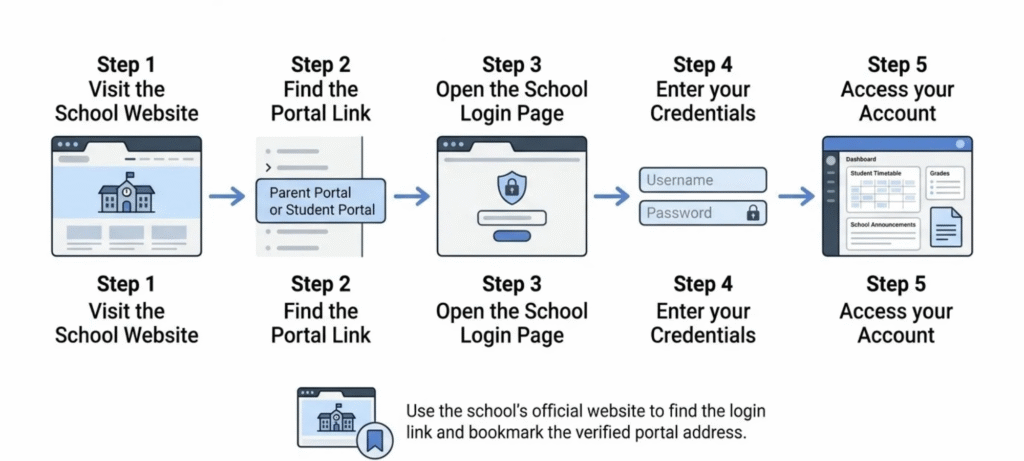
Here’s the usual way in:
- Go to your school’s official website. Skip the search results.
- Look for a link called Parents, Students, Portal or Veracross. It’s often in the top menu or a quick-links box.
- Click through to your school’s login page.
- Type in the username and password the school gave you.
- If it’s your first time, find the welcome email from the school and follow the activation steps.
That covers most cases. If you never got any login details, don’t just keep guessing. Your school’s office or IT team creates and manages accounts, and Veracross itself sends parents and students back to their school for account problems. TASIS Switzerland, for instance, has its own sign-in help page for its community. Those instructions are written for TASIS, so don’t treat them as rules for every school.
Found your school’s portal? Bookmark it before you close the tab. It beats hunting through Google every time you need a grade or a form. There’s a safety angle too. Fake login pages are common, and all they want is your password. So if you ended up on one from an ad, or from a link a stranger sent, don’t type anything. Shut it and go to the school’s own website.
Many schools give students a school-issued username. Parents usually get theirs from the admissions or registrar’s office. Some schools also let families sign in with an email address. Which one you use is up to your school.
What Can You Do in the Veracross Parent Portal?
The veracross parent portal is where most families spend their time. What you can do there depends on your school’s setup, but these are the things parents usually look for:
- Your child’s class schedule and teacher names
- Attendance records
- Published grades and report cards
- The school calendar, announcements and forms
- Family contact details you can check or update
- Tuition invoices and payment options, if your school uses them
The big win is less chasing around. Rather than digging through three emails, a PDF and a paper folder, much of what a family needs sits behind one login. If you have more than one child, that helps even more, since siblings can often be viewed from the same account.
The American Community School of Beirut shares a short walkthrough for its own families, and it’s a good example of how a school explains the parent side: ACS Beirut’s parent guide to Veracross. Your school may name the menus differently, so use it as a rough reference, not a map.
One more thing. The portal shows what the school chooses to publish. If a grade isn’t there yet, the teacher may simply not have posted it. That’s not the same as the system being broken.
How to See Grades and GPA on Veracross
After login, this is the question I hear most. Most families find grades the same basic way:
- Sign in to the portal.
- If you’re a parent, pick your child’s profile.
- Look for a section called Classes, Reports, Grades or something close.
- Open the class or report you want.
- Make sure the right term or marking period is selected.
Menu names change from school to school. University Prep, for example, points parents to “My Children” and then “Classes and Reports.” That’s one school’s layout, so don’t expect to see the same thing.
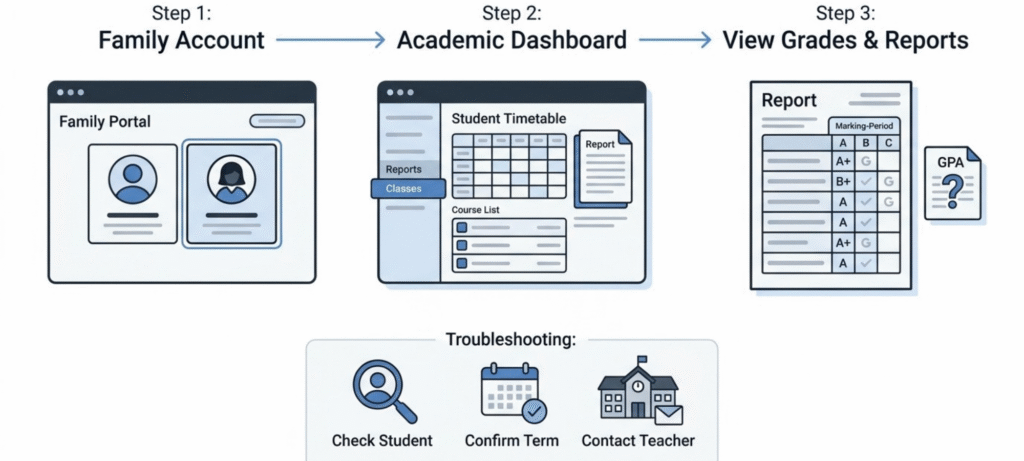
Can’t find grades? Check the easy stuff first. Has the teacher published them yet? Are you looking at last term instead of the current one? Are you signed in under the right child? A lot of “missing grade” worries end right there.
Finding your GPA isn’t always easy. Sometimes it’s sitting in the portal. Sometimes it’s only on the transcript or the report card, and at certain schools it doesn’t appear anywhere. Then there’s the number itself. Honors and advanced classes often count for more, and every school runs its own math, so a 3.8 at your school might not be a 3.8 somewhere else. Not sure where to look? The school counselor or the academic office can tell you how it’s reported and calculated. To learn the basics of how GPA works, our guide on how to raise your GPA covers it in plain language.
Key Veracross Features for Schools and Staff
Parents only see a small piece of the system. Staff use a much bigger set of tools. Going by the company’s product pages, the main areas are:
- Academics. Scheduling, attendance, gradebooks, behavior notes and report cards.
- Admissions. Tracking inquiries and applications, then moving families to enrollment.
- Development and alumni. Donor records, fundraising and alumni contact.
- Business office. Accounting, budgeting and vendor payments.
- Reports and queries. Pulling data out of the system for analysis.
- Integrations. Connecting with other education tools. Veracross supports integrations, and Canvas is one example of a learning management system a school might use alongside it.
Not every staff member sees all of this. The school sets permissions. A teacher might open a gradebook and a class roster, while only the finance team can see billing records. That’s a big part of how student information stays protected.
If you work at a school and need to email a class or build a custom query, those tasks usually depend on your permissions. Your school’s Veracross administrator is the right person to ask. Queries in particular tend to be an admin skill, since you’re pulling and filtering lots of records at once.
Teachers who want a wider look at how gradebook tools are changing classroom life might like this piece on cloud gradebooks and classroom management.
Veracross Payments and VC Pay
Private school tuition is a big expense, so it’s no surprise Veracross comes with billing tools. If your school uses them, invoices go out to families, and parents can usually see their balance and pay online through the portal. The payment side is called VC Pay.
Your school decides which payment options show up, so yours might not match another family’s. Watch the total before you submit. A convenience fee can get added, depending on the method you pick. And if a payment looks like it didn’t go through, stop. Don’t hit retry. Reach out to the business office first, since a second attempt can mean a double charge.
Take a quick screenshot when you pay. Note the date and amount too. If something goes wrong, the office can pull up their records and match them against yours, which gets it fixed in a day instead of a week.
How to Fix Common Veracross Login Problems
Most sign-in trouble comes from the same handful of causes.
Invalid username or password. Passwords are often case-sensitive. Check your capital letters, and look for stray spaces if you pasted it in. Try typing it slowly.
Forgotten password. Use the “forgot password” or “forgot username” link on your school’s login page. You’ll usually need the email address the school has on file, and that may not be the one you use every day. Some parents need the address they gave at application time. Reset links can expire fast at some schools, so open the email as soon as it lands.
No welcome email. Look in spam and junk. Emails from school systems get filtered more often than you’d think. If it’s in there, mark it as not spam. If it isn’t, ask the school to send it again.
Account not activated. New accounts usually need activating through that first email. Follow the steps exactly, and ask the school if the link has run out.
Page won’t load. Try another browser, clear your cache, or switch from wifi to mobile data. Still stuck? Ask whether the school has announced maintenance.
Grades missing. Make sure the right term is selected, then ask the teacher if grades have been posted.
Password rules are a school-by-school thing. Some want a certain length, some ask for symbols or numbers, so go by what your own school’s reset page tells you, not by something you read on another site. One school’s guidance mentions a short window for reset links and a few specific password requirements, but that’s how they set it up. Veracross doesn’t enforce it everywhere.
Wondering if Veracross is down? Look at your school’s announcements first, or ask the IT office. Sometimes it’s only your school’s portal acting up. Other times the real culprit is your own device or wifi, and the symptoms can look almost the same.
Veracross Pricing, CRM and Ownership
How much does Veracross cost? Nobody outside the company can give you a flat number, because Veracross doesn’t post one. A school that’s interested asks for a quote, and the final figure shifts with the school’s size and the modules it picks, such as the CRM and admissions tools. So when a dollar amount turns up online with no source attached, don’t trust it.
As a parent, you probably won’t pay Veracross directly. The school handles the license. If you’re an administrator looking at the platform, ask exactly which modules, support levels and implementation services the quote includes. Parents with questions about how their school handles the cost should contact the school.
Ownership is a similar story. Company ownership can change over time, so it isn’t something to quote from memory. The company’s own About page and recent announcements are the best place to check.
Frequently Asked Questions
What is Veracross?
It’s a web-based student information and school management platform, used mainly by private and independent K-12 schools. It brings academics, admissions, finance and family communication into one system.
How do I log in to Veracross? Use the portal link on your own school’s website, then sign in with the username and password your school gave you. Every school has its own login page, so skip links from other schools.
How do I see grades on Veracross?
Sign in, choose the student profile, and look for Classes, Reports or Grades. Grades only show up once teachers publish them. If something’s missing, check the term and ask the teacher.
How do I check my GPA on Veracross? It depends on the school. Some show a GPA in the portal, and others only put it on transcripts. If you can’t find it, your counselor or academic office can explain how it’s reported.
Is Veracross down? Check your school’s announcements first, or ask its IT office. Trying another browser or network can also show whether the problem is on your end.
How much does Veracross cost?
Pricing isn’t published. Schools request a quote, and the final cost depends on the modules they choose.
Who owns Veracross? Ownership can change, so check the company’s official website or recent announcements for the current answer.
How do I email a class in Veracross?
That’s a staff feature, and whether you have it depends on the permissions your school has set. Ask your school’s Veracross administrator.
Is Veracross an LMS?
Is Veracross an LMS? Not really. It’s built to run the school’s records, schedules and billing, so think of it as the office side of things, not the classroom side. Some schools still push a few class tasks through it, and it can connect to an LMS like Canvas if the school wants that. Whether you get a long menu of tools or a short one is the school’s call.
Final Thoughts
Picture a school’s filing cabinet that families and staff can open from any browser. That’s Veracross in a nutshell. Parents mostly want four things: login, schedules, grades, payments. Staff lean on it for far more, from attendance to admissions to the books. When a school sets it up clearly, it runs smoothly. The trouble starts when people assume every school’s version looks the same. It doesn’t.
Your next step is simple. Go to your school’s own website, find the official portal link, and bookmark it. Keep the school’s help contact handy too. If something looks wrong with your account, that’s the fastest way to get it fixed, and it’s the route Veracross itself recommends.