

The Stanford AI Playground is a university-run website where Stanford students, faculty and staff can try AI models from OpenAI, Google, Anthropic and others, all without opening separate accounts. You sign in with your Stanford SUNet ID at aiplayground.stanford.edu, it’s free, and Stanford’s University IT team runs it. It’s not open to the public, so if you’re outside the Stanford community, you can’t make an account. Below you’ll find the login steps, who qualifies, what the platform can do, how the separate API works and what you shouldn’t paste into it.
Everything here comes from Stanford University IT’s own documentation, last checked on 12 October 2026. This is an independent guide, not an official Stanford page, and the service changes often.
What Is Stanford AI Playground?
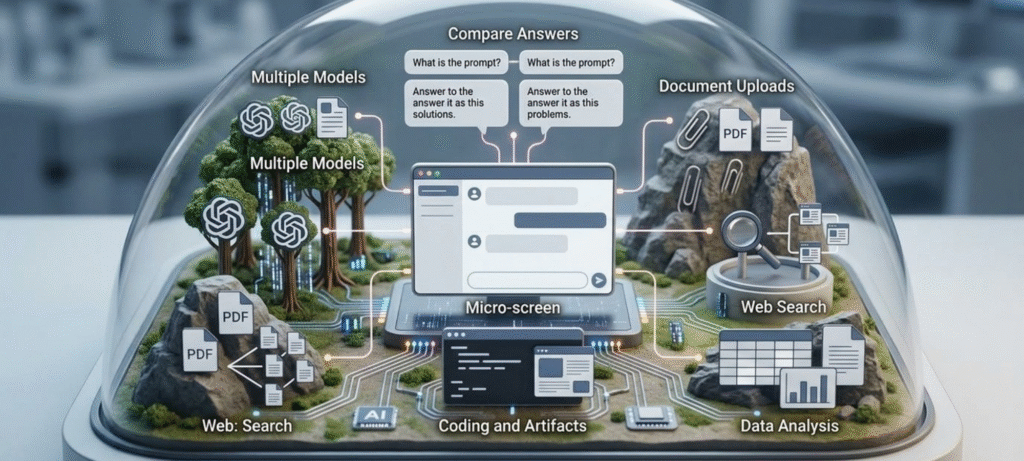
Stanford AI Playground is a platform managed by University IT (UIT) that puts several AI models behind one login. It’s built on an open-source project called LibreChat, and UIT describes it as a place to learn by doing. You write prompts, compare answers, upload documents, and generate code or images. All of it happens inside Stanford’s own environment, not in a vendor’s consumer app.
How Is It Different From a Regular AI Chatbot?
With ChatGPT, Claude or Gemini on their own, you make a personal account, accept each company’s terms and decide for yourself where your data goes. The Playground swaps that for one Stanford sign-on and university agreements with the vendors.
You can also switch models in the middle of a chat. Stanford’s own example goes like this: start a draft with an OpenAI model, switch to an image model for an illustration, then ask an Anthropic model for headline ideas. Same conversation the whole way through.
The trade-off is that it plays by Stanford’s rules. It won’t have every feature of every commercial app, and some things, like custom agents built on MCP, aren’t offered.
Who Manages the Platform?
UIT runs it with a small team, and community feedback drives a lot of the roadmap. That matters because models, agents and access rules get added and removed all the time. The official release notes are the best place to see what’s current.
How to Log In to Stanford AI Playground
Logging in takes about a minute if your SUNet ID is eligible. Stanford’s quick start guide lays out the steps:
- Go to aiplayground.stanford.edu.
- Sign in with Stanford single sign-on (SSO).
- If an Information Release page shows up, which is common on a first visit, choose how often you want to be asked for consent and click Accept.
- Type your first prompt in the box at the bottom of the welcome screen.
That Information Release page is just part of Stanford’s login system. UIT says it only shares your name, affiliation, email, user ID and workgroup between Stanford systems so you can sign in. You don’t need a Cardinal Key, and any device with an up-to-date modern browser works.
Can Anyone Create an Account?
No. Access is limited to active faculty, staff, students, postdocs, visiting scholars, sponsored affiliates and fellows. Your SUNet ID also has to belong to one of the approved Stanford workgroups. Base and full SUNet IDs both work. One catch: students, postdocs and visiting scholars don’t currently get the image generation tools.
What If the Login Doesn’t Work?
The usual sign of trouble is a login loop, where you keep landing back on the sign-in page. UIT says that normally means your account isn’t in one of the approved groups. For other glitches, clear your browser cache or try a private window. If neither helps, send UIT a help request. A personal Gmail address won’t get you in, no matter what.
Is Stanford AI Playground Free?
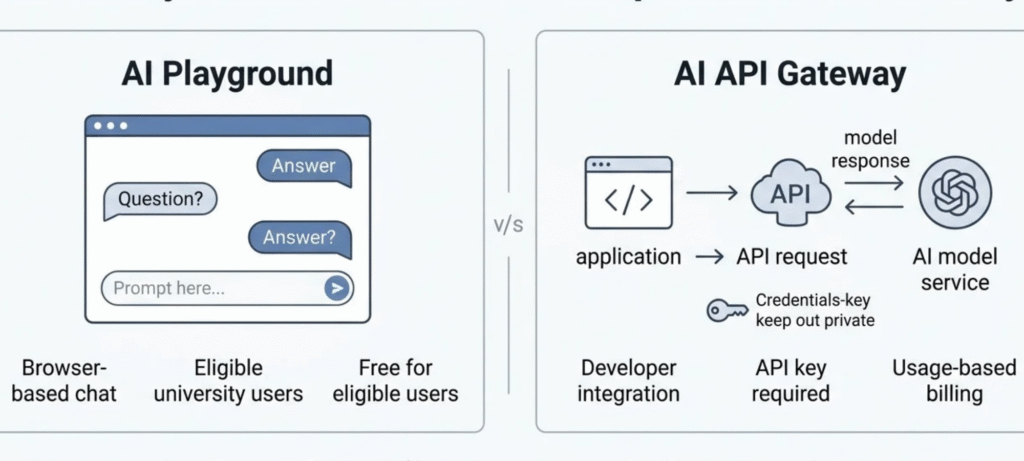
Yes. Stanford’s service page lists the Playground as free for eligible users. But free and open aren’t the same thing, and this is only free for the Stanford community.
Does Free Mean It’s Open to Everyone?
No. Cost and eligibility are separate questions. You still need an eligible SUNet ID, and UIT says the Playground isn’t meant for producing work for commercial use. Think of it as a learning and productivity tool, not a free public replacement for ChatGPT.
Is the Stanford AI API Free Too?
No. The API Gateway is its own service. It bills by usage and needs a valid PTA, short for Project Task Award. More on that in the API section below.
Stanford AI Playground Features and Available Models
What you can actually do matters more than the brand names on the menu, so here’s what the platform offers right now.
Access to Multiple AI Models
The Playground carries models from several providers, and the lineup keeps changing. Stanford’s release notes from September and October 2026 mention GPT 6 variants (Astra, Luna and Sol), Claude Opus 5.5 and Claude Sonnet 5.5, Gemini 3.8 Flash, plus Kimi K3, DeepSeek V4.1 Flash and GLM 5.3, which were switched on for all users on 10 October. Older models do get dropped. Stanford removed DeepSeek V3.2 and R1, for example, because the vendor retired them.
One thing that trips people up: the model table in Stanford’s FAQ can lag behind the release notes. At the time of writing it still recommends older names like GPT 5.6 and Claude Opus 4.8. So don’t treat any list, including this one, as final. Check the model selector inside the Playground, since what you see there depends on your account.
On context length, the FAQ says most models handle somewhere between 32,000 and 200,000 tokens and that UIT doesn’t add its own limit on top. What you can actually send still depends on the model you pick.
There’s also a side-by-side compare mode. You send one prompt to two models and read the answers next to each other. For choosing between models, it’s probably the most useful feature in the whole interface.
Writing, Files and Research
Use the paperclip menu to upload images, upload a document as text (with OCR for PDFs and images), or upload for File Search. File Search lets the AI pull out the relevant parts of a long document instead of reading all of it at once. Supported files include PDF, TXT, CSV, Word, Excel, PNG and JPG.
Web Search adds linked online sources to a reply. Memories, which is switched on by default, lets the models remember details about you across chats. You can turn it off.
Coding, Charts and Artifacts
Turn on Artifacts from the Tools menu and the Playground can show code running right on screen, including React, HTML5 and three.js. That makes it handy for quick prototypes. It works best with OpenAI and Anthropic models and doesn’t run alongside agents. There’s also a Data/Code Analyst assistant, built on Azure OpenAI’s code interpreter, for messy spreadsheets and PDFs.
Stanford-Specific Agents
Agents are the Stanford-flavoured part. Current ones include Admin Guide Search, Faculty Handbook Search, the Financial Info Navigator for finance questions, an AI Helper agent that explains the platform, Wolfram for math, and a Gemini image generator. Stanford says the information behind its university-specific agents is refreshed monthly. Which ones you see depends on your workgroup, and older agents come and go. ScholarAI, for instance, was removed in late 2025.
How to Use Stanford AI Playground Effectively
Getting good results mostly comes down to three habits.
Choose the Right Model for the Task
UIT is upfront that there’s no single best model. Quick factual questions, long documents, tricky code and creative writing can each suit a different one. Run the same prompt through two models in compare mode and pick the answer you’d actually use.
Write Clear Prompts
Vague requests get vague answers. Here’s the difference:
- Weak: “Explain this report.”
- Better: “Summarise this report in five key points, explain the main conclusion in plain English, and list any claims I should verify.”
If an answer is close but not quite right, edit your prompt and resend it instead of starting from scratch.
Check Responses Before Using Them
These models can sound very sure of themselves and still be wrong. Stanford’s FAQ calls hallucinations an inherent limitation that can’t be fully removed, and says a human should stay in the loop on anything important. UIT also recommends citing AI-generated material when you share it publicly.
Stanford AI Playground API: What Developers Need to Know
Want to build your own tool on the same models? Then you don’t use the Playground website. You use the AI API Gateway, a separate service that UIT released on 7 April 2025. It runs on an open-source platform called LiteLLM.
What Is the AI API Gateway?
An API lets your own software send a prompt to a model and get the reply back, with nobody typing into a chat window. The Gateway gives eligible Stanford people that kind of access to the models behind the Playground. It has its own service page, FAQs and rates, and the Playground FAQs don’t apply to it.
How to Request an API Key
You need to be Stanford faculty, staff or a student with a valid PTA. Then you submit the form to request a new API key through Stanford’s ServiceNow site. Two practical points from Stanford’s research computing documentation: a key only works for the models you picked when it was created, so new models need a new key, and the Gateway doesn’t support batch mode and can be slower than commercial APIs. Keep your key somewhere safe and never hardcode it in your source files.
Costs and Data Limits
Stanford’s rates page lists OpenAI and Anthropic models at 50% off standard vendor prices. Gemini models show flat prices instead, for example Gemini 2.5 Pro at $2.50 per million input tokens and $15 per million output tokens. That page was last modified on 30 July 2026, so rates may have moved since. Confirm them yourself before you budget anything.
Data approval is different from the Playground’s. Stanford’s current Gateway page says the Gateway is approved for high-risk data and PHI (protected health information). The Playground is approved for high-risk data that doesn’t include PHI, and PHI isn’t approved there. Earlier versions of Stanford’s pages disagreed on this, so read the service page again before you send anything sensitive, and check your department’s own requirements too.
The Gateway FAQ also lists coding-assistant integration as coming soon. That’s the closest official answer to searches about Claude Code or Codex.
Stanford AI Playground Privacy, Security and Data Rules
The big draw of the Playground over a consumer app is that it runs inside a Stanford-managed environment, with university agreements and clear rules about which kinds of data are allowed. The details matter, so let’s go through them.
What Data Can You Use?
| Data type | AI Playground | API Gateway |
|---|---|---|
| Low and moderate risk (including FERPA data) | Approved | Approved for moderate per Stanford’s FAQ; check the service page |
| High risk, non-PHI (including PII) | Approved since 13 May 2026 | Approved |
| PHI (patient data) | Not approved | Approved per Stanford’s Gateway page |
| PCI (payment card data) | Under review, not approved | Not stated |
Stanford’s examples of high-risk data include HR files, W-2s and I-9s, financial aid records and salary information. Your school or department may add its own rules, and some uses need an approved Data Risk Assessment first. If you’re handling student records at work, our guide on keeping student data safe online is a useful companion read.
What Happens to Your Data?
Stanford says the data you enter into the Playground isn’t used to train models, and UIT doesn’t do any custom training or fine-tuning of them. What you share is restricted to your own account. Still, a small number of authorised UIT staff can access information when it’s required, and the university may have to hand data over in investigations or legal cases. You can’t opt out of logging, which is why Temporary Chat exists.
How long things stick around:
- Normal chats: kept until you delete them.
- Temporary Chats: purged after 30 days and left out of your search and bookmarks.
- Uploaded and generated files: deleted daily.
Watch the Share button too. Anyone at Stanford who’s logged in and has the link can read that conversation.
What to Do Before You Upload a File
Check your department’s policy, use only data you’re allowed to use, and leave out personal details you don’t need. If you work at Stanford Medicine, check current guidance before using it at all. Early coverage pointed Medicine users to a separate secure tool.
Can You Install Stanford AI Playground as an App?
Sort of. There’s no app store download, but you can install the site as a Progressive Web App (PWA). It opens in its own window and takes up about 3 MB. Stanford has an install guide with the details.
How to Add It to Your Home Screen
On Chrome or Edge, open the site and click the install icon in the address bar. In Safari on a Mac, use Share, then Add to Dock. On a phone or tablet, open your browser’s Share menu, tap Add to Home Screen, then tap Add.
Stanford AI Playground Limitations and Alternatives
It has a few honest limits. Heavy use gets throttled. Stanford’s FAQ says you’ll hit an error if you send more than two messages at a time, and a July 2026 release note cut the cap to six messages in any one-minute window. Limits like these can change, so check the latest release notes. Large files may need splitting, and big images get compressed before the model sees them. You can’t build custom agents, you can’t opt out of logging, and it isn’t meant for commercial content.
When Should You Use Another AI Tool?
If you need full-resolution images or want to build custom apps, look at the API Gateway. Students without the image tools can use the Gemini and Microsoft Copilot options that come with their Stanford accounts, according to Stanford’s FAQ. Stanford also lists Claude for Education, Gemini Enterprise and ChatGPT Edu among its AI services.
If you’re not at Stanford, the Playground isn’t an option, and a public AI service is the realistic alternative. For non-AI help with studying, our roundup of the best online study tools for students is a good place to start.
Frequently Asked Questions
How do I log in to Stanford AI Playground?
Go to aiplayground.stanford.edu and sign in with your SUNet ID through Stanford single sign-on. If you get stuck in a login loop, your account probably isn’t in an approved workgroup.
Is Stanford AI Playground free?
Yes, for eligible Stanford users. Stanford’s service page lists it as free of charge. The API Gateway is separate and bills by usage.
Can non-Stanford students use it?
No. Access is limited to eligible Stanford community members with the right SUNet ID, and there’s no public sign-up.
Does Stanford AI Playground have an API?
Yes, through the separate AI API Gateway. You need a valid PTA and have to request a key through Stanford’s form.
Which AI models are available?
Models from OpenAI, Google, Anthropic and others, including newer additions like Kimi K3, DeepSeek V4.1 Flash and GLM 5.3. The lineup changes often, so check the release notes and the model selector.
Can I use it for sensitive data?
High-risk non-PHI data is approved in the Playground as of 13 May 2026. PHI isn’t approved there, and payment card data is still under review. Check your own department’s rules too.
Can I install it on my phone?
You can add it to your home screen as a PWA, though it isn’t a separate app-store app.
Does it keep my chats?
Normal chats stay until you delete them, Temporary Chats are removed after 30 days, and uploaded files are deleted daily.
Final Thoughts
Stanford AI Playground is a free, useful way for the Stanford community to compare AI models, work with documents and prototype ideas in a university-approved space. Access depends on your affiliation, the API is a separate service with its own costs and rules, and the data limits deserve a proper read before you upload anything. For login help, the current model list, rates and data policy, go to Stanford’s official pages. They’re the ones that stay up to date.