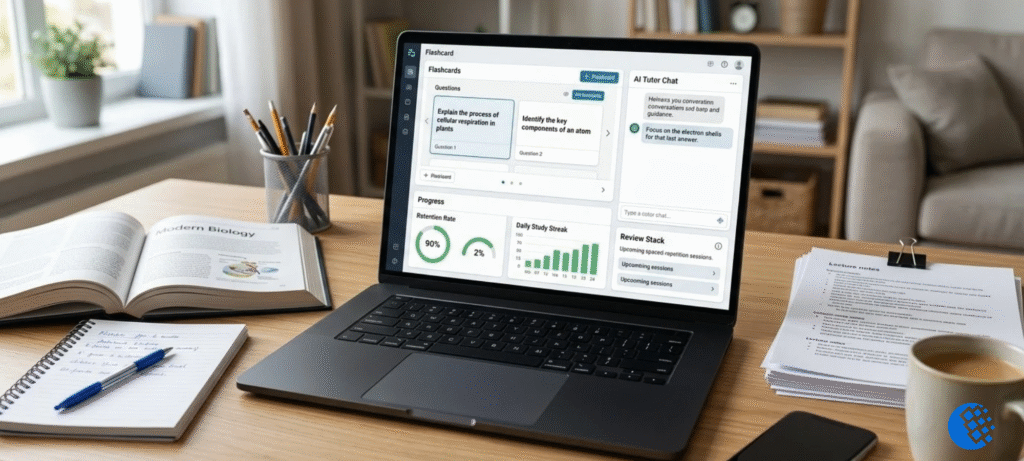

What are the best AI tools for lesson planning? Depends what’s eating your time. If you want a whole lesson drafted, MagicSchool and Eduaide were built with teachers in mind. Diffit is the one I’d grab for changing reading levels. Canva takes care of slides and handouts. And ChatGPT or Gemini? Handy when you just need to throw ideas around.
That’s the short version. The longer version is that “lesson planning” isn’t one task. It’s a pile of little ones: writing objectives, planning activities, building worksheets, coming up with questions, then tweaking all of it for kids who learn differently. Nothing on this list does every one of those jobs equally well.
So I’ve grouped these AI tools for lesson planning by what each one is actually good at. By the end you should know what’s worth trying, what to skip, and how to choose without burning a whole evening on sign-up forms.
How I Picked These AI Lesson Planning Tools
Quick confession first. I haven’t run each of these in a real classroom for weeks. What I did was read the product descriptions, see what teachers and education sites were saying, and think hard about which tool suits which planning job.
Here’s what I paid attention to:
- Relevance to planning. Does it help you build lessons, or is it mostly something else, like grading?
- Customisation. Can you change the grade level, time limit and objectives?
- Classroom resources. Can it make worksheets, quizzes, slides or rubrics?
- Differentiation. Does it help with reading levels or students who need extra support?
- Ease of use. Could a busy teacher get something useful out of it in a few minutes?
- Free access. Is there a free option, and what are the limits?
Treat this as a list of “best for” suggestions, not a scientific ranking. A tool that’s perfect for a Grade 2 teacher could be useless for someone teaching high school physics.
8 AI Tools for Lesson Planning Compared
1. MagicSchool
Want a tool made only for teachers? MagicSchool is where most people end up starting. You type in the subject, grade, time you’ve got and any standards. It spits out a draft plan, and you can edit it piece by piece. There’s a long list of other teacher tools in there too, not just lesson plans.
Best for: teachers who need a full lesson draft in a hurry.
Keep in mind: check the plan against your own curriculum, every time. And take a look at the current free and paid limits on their site before you settle in.
2. Eduaide.AI
Eduaide covers a lot of ground. Lesson plans, worksheets, discussion activities, graphic organizers, rubrics, assessments. It also claims support for standards from different regions and has tools for reading levels. So if you’d rather get the plan and the extras from one place, it’s a decent fit.
Best for: teachers who want the materials along with the lesson outline.
Keep in mind: how well it matches standards depends on where you teach. Don’t assume. Double-check that your curriculum is covered, and read the details on the Eduaide site.
3. Brisk Teaching
Brisk lives in your browser as an extension, so it shows up inside the tools you’re already using. Hand it a prompt or a document you’ve already got, and it can turn that into lessons, quizzes or slide decks. It works in several languages. There’s also a lesson plan generator in the mix.
Best for: teachers with materials already in hand who want to reshape them.
Keep in mind: garbage in, garbage out. Start with something solid, because a weak source gives you a weak result.
4. Diffit
Diffit has one trick and it does it well: differentiation. Feed it a topic or a passage, and it rewrites the reading for different levels. Got a class where reading ability is all over the place? That alone can give you back a good chunk of your evening.
Best for: adapting readings and resources for different learners.
Keep in mind: Diffit is a helper, not a planner. It won’t map out your lesson sequence. You’ll need another tool next to it for that.
5. Canva
Canva? Most people think of it as a design tool. But its AI features can sketch a lesson outline too, and then you turn that outline into slides, worksheets or handouts without leaving the app. Honestly, nothing else here makes classroom materials look this polished.
Best for: visual lessons, presentations and printables.
Keep in mind: the planning side is thinner than in the teacher-focused tools. More of the thinking lands on you.
6. SchoolAI
SchoolAI goes well beyond the teacher’s desk. You build interactive learning spaces, which it calls “Spaces.” Students dig into a topic there, answer questions and work through activities with a bit of guidance. And you get learning data live. Who’s following along? Who’s stuck? You can see it as it happens.
Best for: interactive activities that students use on their own.
Keep in mind: students are using it directly, so check your school’s position on student data and AI before you roll it out.
7. ChatGPT
ChatGPT is the do-anything option. Discussion questions, exit tickets, ways to differentiate, even a multi-day unit. Tell it what you want and it has a go. That freedom is the best thing about it. It’s also the catch.
Best for: open-ended brainstorming and first drafts.
Keep in mind: it knows nothing about your curriculum unless you tell it. Give it clear details, then fact-check whatever comes back.
8. Google Gemini
Gemini works in much the same way. Depending on your account, it can help you plan lessons, draft materials and rework ideas you already have. Does your school already run on Google tools? Then it probably feels like the obvious pick.
Best for: teachers who want a general assistant living inside the Google world.
Keep in mind: what you get depends on your account type. Check what’s actually switched on for you.
Comparison Table: Which Tool Fits Which Task?
| Tool | Main strength | Dedicated lesson planner? | Typical output | Check before choosing |
|---|---|---|---|---|
| MagicSchool | Full lesson plans | Yes | Plans, teacher resources | Free plan limits |
| Eduaide.AI | Plans plus materials | Yes | Worksheets, rubrics, assessments | Standards for your region |
| Brisk Teaching | Adapting existing content | Yes, alongside other tools | Lessons, quizzes, slides | Quality of your source |
| Diffit | Differentiation | No, mainly a resource tool | Leveled readings | How it fits your plan |
| Canva | Visual materials | Yes, with design tools | Lesson drafts, slides, handouts | Depth of planning help |
| SchoolAI | Student-facing activities | Not primarily | Interactive Spaces, quizzes | Student data rules |
| ChatGPT | Flexible drafting | General-purpose | Anything you ask for | Accuracy of content |
| Google Gemini | General planning help | General-purpose | Drafts and ideas | Features on your account |
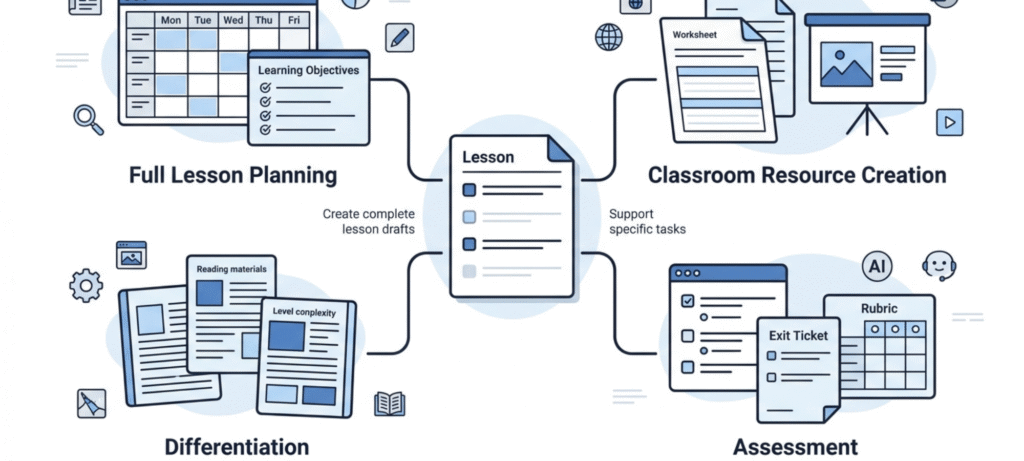
Only have time to try two? I’d pick one teacher-focused tool (MagicSchool or Eduaide) and one flexible assistant (ChatGPT or Gemini). Between them, most planning jobs are covered.
Best Free AI Tools for Lesson Planning
Lots of teachers go looking for free AI tools for lesson planning, and it makes sense. School budgets are tight.
Here’s the honest picture: free access changes often, and it’s different for every tool. Some have a free plan with a cap on how much you can generate. Others give extra features only to verified teachers or schools. And some want you to upgrade for the good stuff.
So don’t assume a tool is fully free just because a list says so. Check these on the official page:
- Usage limits. How many plans or resources can you create each month?
- Locked features. Are exports, standards tools or student features behind a paywall?
- Eligibility. Do you need a school email or teacher verification?
- Region. Do the free features apply where you teach?
If you’re just starting, try the free version of one planning tool and one general assistant. See if they save you time on a real lesson before you pay for anything. For more classroom ideas, our teacher toolbox guide rounds up other useful resources.
How to Create a Lesson Plan With AI: A Practical Example
Imagine a 45-minute Grade 5 lesson on the water cycle is next on your list. This is the route I’d take.
Step 1: Start with your objective. By the bell, what should your kids be able to do? Say they can explain evaporation, condensation and precipitation in their own words. That’s your target. Put it on paper before anything else.
Step 2: Give the AI some context. Mention the grade. Say how many minutes you’ve got, what’s actually in your classroom and what your curriculum notes say. Keep it loose and the draft comes back loose. Be specific and the results improve a lot.
Step 3: Ask for the whole structure. Request an intro, an explanation, an activity, a few check-in questions and an exit ticket. Everything at once, in one go.
Step 4: Go through it line by line. Hunt for factual slips and fix them. Tighten the pacing. Then reshape the activity until it works for your actual class, not some imaginary one.
Step 5: Adapt it. Add support for students who need it. And a stretch task for the ones who finish early? Yes, add that too.
Here’s a prompt you can copy and change:
Create a 45-minute Grade 5 science lesson about the water cycle.

Learning objective: Students should be able to explain evaporation, condensation and precipitation.

Include:
- A short lesson introduction.
- A clear explanation of the main concepts.
- A classroom activity using accessible materials.
- Five questions to check understanding.
- One exit-ticket question.
- A simple assessment rubric.
- Adaptations for students who need extra support and students who need an additional challenge.

Tell me any curriculum assumptions you make. Do not invent curriculum standards. Organise the plan by time, teacher activity, student activity and assessment.
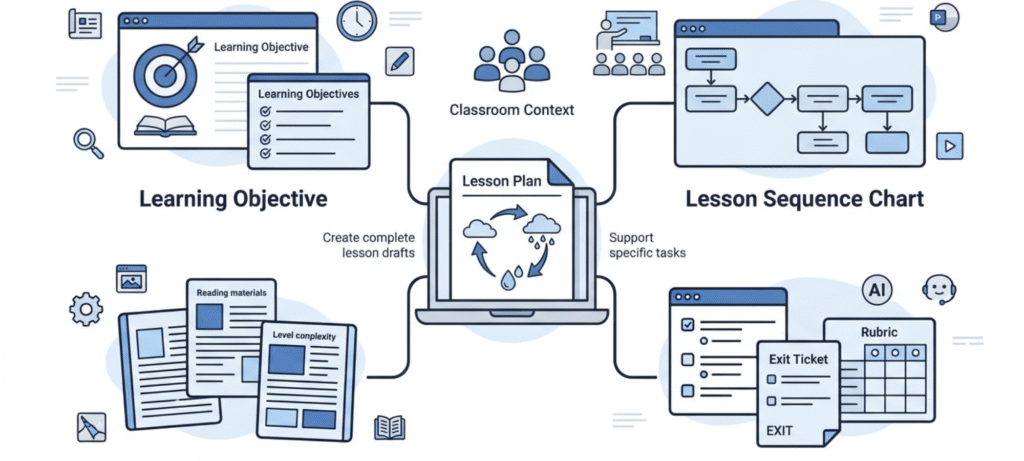
Don’t skip that last line of the prompt. Tell the tool not to make up standards and it makes up fewer. Fewer, not none. You still have to check every one. But it’s a habit worth building early.
Training to be a teacher? Then try this too. Write your own objective first, before you peek at what the AI suggests. Now put the two side by side. Where do they differ? Talk that through with your mentor.
How Teachers Can Use AI for Lesson Planning Responsibly
Treat whatever AI hands you as a rough draft. Not a finished lesson. A few habits will keep that draft useful, and keep you out of trouble.
Check the facts. These tools sound sure of themselves even when they’re wrong. Every explanation, every example, every answer key needs a read before it gets anywhere near your students.
Match your curriculum. A generated plan won’t always fit your local requirements. Put it next to your official standards and see where it drifts.
Watch for bias. Look at the names, examples and scenarios it chooses. Do they suit your students? Or do some lean on stereotypes?
Protect student data. Names, grades, private details: keep them out of any tool your school hasn’t approved. In the US? Spend a few minutes on FERPA and student privacy rules before you paste student information into any platform.
Follow your school’s AI policy. Plenty of schools now say exactly which tools staff and students may use. Find out where yours stands.
Keep your own judgement in charge. You know your students. The AI doesn’t. Use its output as a starting point, then make the final call yourself.
Curious where all this is heading? This piece on what LLM-powered classrooms could mean for teachers and learners is worth your time.
Frequently Asked Questions
What are the best AI tools for lesson planning?
For full lesson plans, MagicSchool and Eduaide are the strongest picks. Need differentiation? Try Diffit. Want good-looking materials? Canva. For flexible brainstorming, use ChatGPT or Gemini.
Can AI create a complete lesson plan?
It can draft one, yes. Expect an intro, some activities, questions and an idea for assessment. You’ll still need to go through it for accuracy and to make sure it fits your class.
Are there free AI tools for lesson planning?
Plenty of them have a free plan or trial, though the limits differ a lot. The official page of each tool has the current details.
Which AI tool is best for differentiated instruction?
Diffit, mostly, since it’s built around changing reading levels. Eduaide and SchoolAI handle differentiation too, just in their own ways.
Can AI tools help teachers create assessments?
They can. Several will write quiz questions, exit tickets and rubrics for you. Just check the answer keys yourself.
Is it okay to use AI for lesson planning?
Is it okay to use AI for lesson planning? Mostly, yes. But stick to your school’s policy, keep student data out of it, and read every word before it reaches your class.
Conclusion
So, which are the best AI tools for lesson planning? The ones that suit whatever job is on your desk today. Want a full draft? Go for a teacher-focused tool like MagicSchool or Eduaide. Readings too hard or too easy for some kids? That’s where Diffit comes in. Lesson has to look good? Canva. And when you’d rather think out loud, open ChatGPT or Gemini.
Start small. Pick one lesson you already have to plan. Try one tool. See how much time it actually saves. Then edit the result the way you’d edit any draft, with your own eyes and your own classroom in mind.